
Windows Blue Screen & Boot Problems in Chennai – Causes, Fixes & Computer Repair Solutions
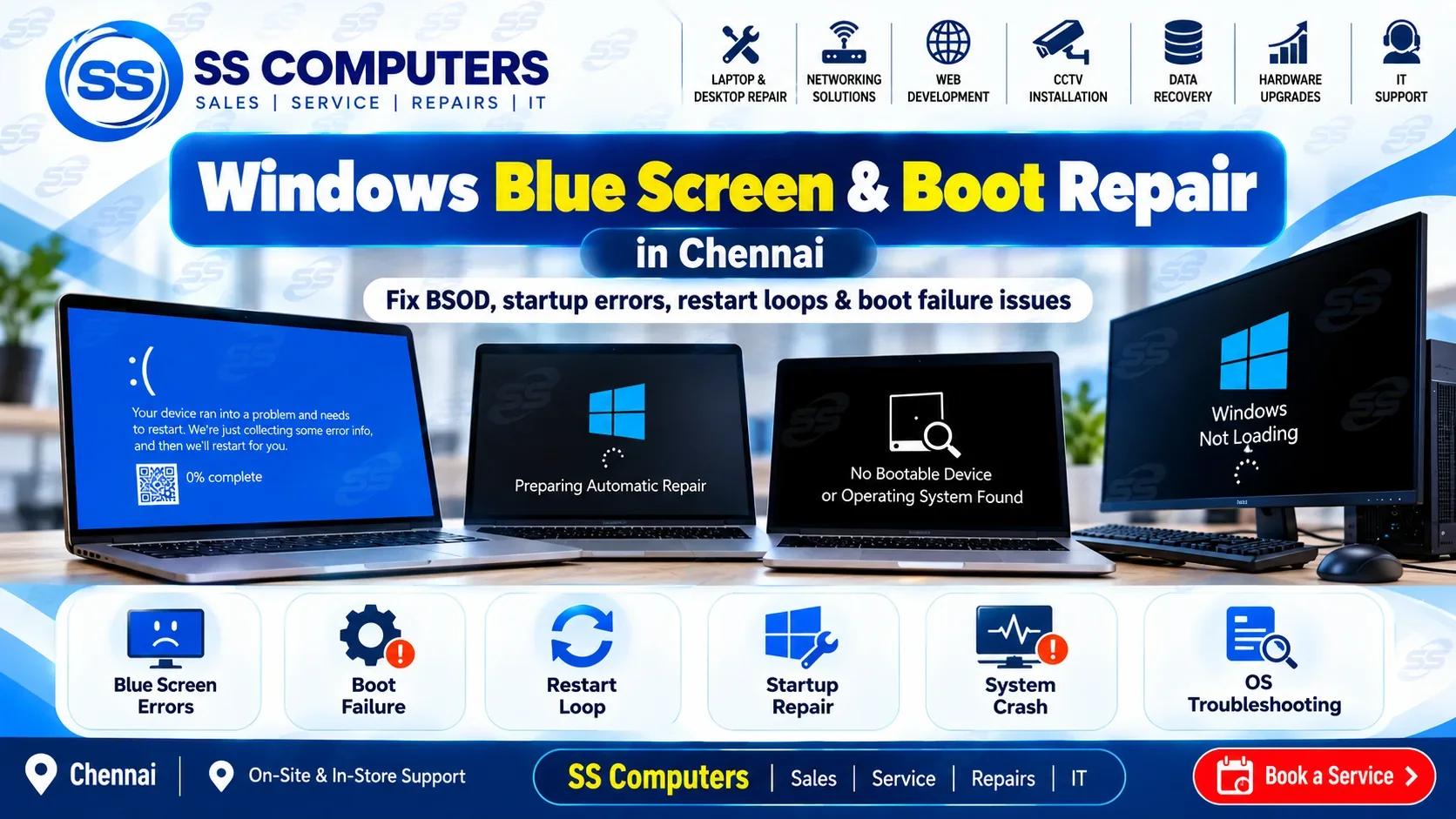
A Windows computer or laptop that suddenly shows a Blue Screen, Automatic Repair loop, black screen or fails to start Windows can stop your work completely.
Some startup problems are caused by Windows software or damaged system files, while others may be related to the SSD, hard drive, RAM, drivers or motherboard.
SS Computers provides Windows troubleshooting and computer repair support in Sithalapakkam, Chennai, serving nearby areas including Medavakkam, Perumbakkam, Ottiambakkam and Sholinganallur.
For general Windows problems, visit our Computer Software Support page.
Common Windows Startup Problems
Typical symptoms include:
- Windows Blue Screen error
- Computer restarting continuously
- Automatic Repair loop
- Preparing Automatic Repair stuck
- Windows not loading
- Black screen after startup
- Windows logo stuck
- Computer starts but desktop does not appear
- Boot device not found
- No operating system found
- Startup repair failed
- Windows freezing during boot
The correct repair depends on the actual cause.
1. Windows Blue Screen Error
A Blue Screen of Death, commonly called BSOD, appears when Windows encounters a serious system error.
Possible causes include:
- Faulty RAM
- SSD or hard-drive errors
- Driver problems
- Damaged Windows files
- Software conflicts
- Overheating
- Graphics problems
- Motherboard faults
The error code displayed on the blue screen can sometimes help identify the cause.
2. Automatic Repair Loop
Windows may repeatedly display:
Preparing Automatic Repair
or
Diagnosing Your PC
without successfully starting.
Possible causes include:
- Corrupted Windows startup files
- Failed Windows update
- Damaged boot configuration
- SSD or HDD problems
- Sudden power loss
- File-system corruption
Repeatedly restarting the system may not solve the underlying problem.
3. Windows Stuck on Logo
If the computer powers on but remains stuck at the Windows logo, possible reasons include:
- Damaged Windows files
- Driver conflicts
- Storage problems
- Failed update
- USB device conflict
- RAM issue
The system should be checked before reinstalling Windows because your files may still be recoverable.
4. Black Screen After Windows Starts
A black screen can occur even when the laptop or desktop is powered on.
Possible causes include:
- Windows Explorer problem
- Graphics driver failure
- Incorrect display configuration
- Corrupted user profile
- Windows update issue
- GPU or motherboard problem
If the computer also has display lines, flickering or distorted graphics, read our Laptop Screen Problems & Solutions guide.
5. Boot Device Not Found
Messages such as:
Boot Device Not Found
No Bootable Device
or
Operating System Not Found
can indicate that the computer is unable to access Windows from the storage drive.
Possible causes include:
- SSD or hard drive not detected
- Loose storage connection
- Failed SSD/HDD
- BIOS boot-order problem
- Damaged Windows boot files
A failing storage device should be diagnosed before repeatedly attempting Windows installation.
6. SSD or Hard Drive Failure
Storage problems are a common cause of Windows startup failures.
Possible warning signs include:
- Slow startup
- Frequent freezing
- File corruption
- Clicking noise from an HDD
- Blue-screen errors
- Windows repair loop
- Drive disappearing from BIOS
- Computer becoming extremely slow
If the storage drive is failing, replacement may be required.
For upgrade information, read our SSD Upgrade for Laptop & Desktop in Chennai guide.
7. RAM Problems
Faulty or unstable RAM can cause:
- Blue-screen errors
- Random restarting
- Freezing
- Windows installation errors
- No display
- Boot failures
Memory testing can help determine whether the RAM is causing the problem.
8. Windows Update Problems
Occasionally, a Windows update may fail or cause startup problems.
Symptoms may include:
- Computer restarting repeatedly
- Black screen after update
- Startup Repair
- Driver errors
- Very slow booting
Depending on the problem, Windows recovery options or driver repair may be required.
9. Driver Problems
Incorrect or corrupted drivers can cause Windows instability.
Common examples include:
- Graphics drivers
- Storage drivers
- Wi-Fi drivers
- Chipset drivers
- Audio drivers
If your Wi-Fi stopped working after Windows changes, see our Networking Services in Chennai guide.
10. Overheating and Unexpected Restart
A computer that becomes very hot can freeze, restart or shut down unexpectedly.
Possible causes include:
- Dust buildup
- Cooling fan problem
- Blocked airflow
- Dried thermal paste
- CPU or GPU overheating
Read our Laptop Repair in Chennai guide for related cooling problems.
11. Motherboard or Hardware Problem
Not every Windows startup problem is caused by Windows itself.
If the computer has symptoms such as:
- No power
- No display
- Random restart
- Charging problems
- RAM not detected
- SSD not detected
the motherboard or another hardware component may require diagnosis.
See our Motherboard Repair in Chennai article.
Should Windows Be Reinstalled?
Windows reinstall is not always the first solution.
Before reinstalling, it may be useful to check:
- SSD/HDD health
- RAM
- Boot configuration
- Windows recovery options
- Important customer data
- Drivers
- Hardware condition
If Windows is reinstalled without checking a failing storage drive, the same problem may return.
Protect Your Important Data
If your computer contains important documents, photos or business files, avoid repeated repair attempts when the storage drive appears damaged.
A failing drive can sometimes become worse with continued use.
If data is important, inform the technician before Windows installation or storage replacement.
Windows Repair for Laptop & Desktop Computers
SS Computers can assist with:
- Windows startup problems
- Blue-screen errors
- Automatic Repair loops
- Windows installation
- Driver installation
- SSD and HDD diagnosis
- RAM testing
- Windows performance problems
- Software troubleshooting
- Hardware diagnosis
For complete service, visit:
Windows Repair Service Areas in Chennai
SS Computers is based in Sithalapakkam, Chennai and supports customers from:
Windows Boot Problem FAQ
Why does my computer keep showing a blue screen?
Blue screens may be caused by RAM, storage, drivers, damaged Windows files, overheating or hardware faults.
Can Windows Automatic Repair Loop be fixed?
In many cases, yes. The correct solution depends on whether the cause is Windows corruption, boot configuration, storage failure or another hardware problem.
Will repairing Windows delete my files?
Not every Windows repair requires deleting files. However, data should always be considered before reinstalling or replacing a storage drive.
Why does my computer say Boot Device Not Found?
The SSD or hard drive may not be detected, the boot configuration may be incorrect, or the storage drive may have failed.
Do you repair Windows boot problems near Medavakkam?
Yes. SS Computers is based in Sithalapakkam and supports customers from Medavakkam and nearby South Chennai areas.
Need Windows Repair in Chennai?
If your laptop or desktop has a blue screen, Automatic Repair loop, black screen, boot error or Windows startup problem, proper diagnosis can determine whether the problem comes from Windows, the storage drive, RAM or other hardware.