
Laptop Fan Noise & Overheating in Chennai – Cooling Fan Problems, Dust Cleaning & Repair
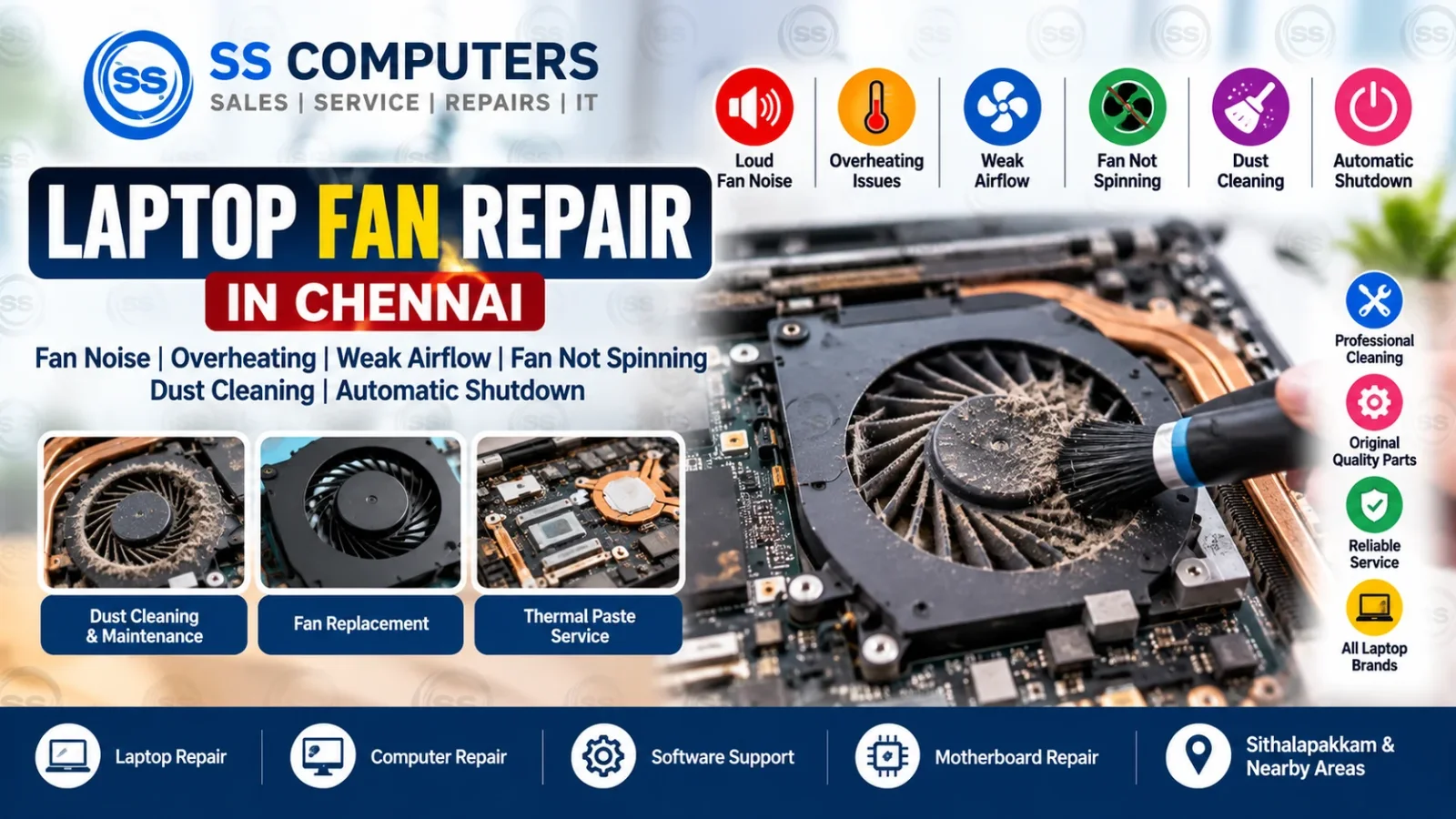
A laptop cooling fan helps remove heat from the processor, graphics chip and other internal components. When the fan becomes blocked with dust, runs slowly, makes unusual noise or stops spinning, the laptop can overheat and may become slow, freeze or shut down automatically.
SS Computers provides laptop fan diagnosis, cleaning and repair support in Sithalapakkam, Chennai, with service for nearby areas including Medavakkam, Perumbakkam, Ottiambakkam and Sholinganallur.
Before replacing a cooling fan, the laptop should be checked properly because overheating can also be caused by blocked vents, dried thermal paste, software load, motherboard faults or other cooling problems.
For complete laptop troubleshooting, visit our Laptop Repair in Chennai service page.
Common Laptop Fan and Cooling Problems
Laptop cooling problems can appear in several different ways.
Common symptoms include:
- Loud fan noise
- Grinding or rattling sound
- Fan running continuously
- Fan not spinning
- Weak airflow from the vents
- Laptop body becoming very hot
- Slow performance while using heavy applications
- Sudden shutdown or restart
- Laptop freezing during work
- High temperature warnings
If you notice these symptoms, the cooling system should be inspected before the problem causes additional hardware damage.
1. Loud Laptop Fan Noise
A laptop fan may become noisy because of:
- Dust buildup
- Worn fan bearings
- Damaged fan blades
- Fan touching nearby parts
- High processor usage
- Poor airflow
- Cooling system blockage
A fan that suddenly becomes much louder than normal should be checked.
Cleaning may solve the issue if dust is the main cause. If the bearing or fan motor is damaged, replacement may be required.
2. Laptop Overheating
Laptop overheating is one of the most common cooling-related problems.
Heat can build up because of:
- Dust inside the fan
- Blocked air vents
- Dried thermal paste
- Faulty cooling fan
- Heavy CPU or GPU usage
- Poor ventilation
- Motherboard or power-related problems
Overheating can reduce performance and may cause the laptop to shut down automatically to protect internal components.
For more information, read our Laptop Overheating & Automatic Shutdown guide.
3. Laptop Fan Not Spinning
If the fan does not spin at all, the laptop may heat up quickly.
Possible causes include:
- Failed fan motor
- Loose fan connector
- Damaged fan cable
- Motherboard fan-control problem
- Dust or debris blocking the fan
- BIOS or hardware-control issue
Some modern laptops may stop the fan at very low temperatures, so the fan should be tested under normal operating load before deciding that it has failed.
4. Weak Airflow from Laptop Vents
Weak airflow may indicate:
- Dust blocking the heatsink
- Fan spinning slowly
- Damaged fan blades
- Internal debris
- Blocked ventilation openings
A laptop can still become very hot even if the fan is running.
Cleaning the fan and heatsink can help restore normal airflow when dust is the cause.
5. Laptop Fan Running All the Time
A fan that runs constantly at high speed may indicate that the laptop is working harder than normal or that the cooling system is struggling to remove heat.
Possible causes include:
- Background software using high CPU
- Windows update activity
- Malware or unwanted software
- Dust inside the cooling system
- Dried thermal paste
- Poor ventilation
- High ambient temperature
For software-related performance problems, visit our Computer Software Support page.
6. Automatic Shutdown Due to Overheating
If a laptop becomes very hot and then shuts down automatically, overheating may be the cause.
Repeated heat-related shutdowns should not be ignored.
Possible reasons include:
- Fan failure
- Blocked heatsink
- Dust buildup
- Thermal paste failure
- CPU or GPU overheating
- Motherboard temperature issue
The laptop should be inspected before continued use.
You can also read our Laptop Overheating & Automatic Shutdown article.
7. Dust Cleaning for Laptop Cooling
Dust gradually builds up inside laptops, especially around the fan and heatsink fins.
Heavy dust can restrict airflow and cause:
- High temperatures
- Loud fan noise
- Reduced performance
- Fan running continuously
- Sudden shutdown
Professional internal cleaning can help restore airflow without damaging delicate connectors and components.
Regular cleaning can be particularly useful for laptops used in dusty environments or for long working hours.
8. Thermal Paste and Cooling Performance
Thermal paste helps transfer heat from the processor or graphics chip to the heatsink.
Over time, old thermal compound may dry out and become less effective.
Possible signs include:
- High CPU temperature
- Fan constantly running fast
- Performance slowdown
- Shutdown during heavy work
Thermal paste should only be replaced when needed and applied correctly.
9. Fan Noise After Laptop Repair or Upgrade
If fan noise starts after a repair or upgrade, the laptop should be checked for:
- Loose fan cable
- Incorrect fan mounting
- Obstruction near the fan
- Poor heatsink contact
- High background CPU activity
A quick inspection can help identify whether the issue is mechanical or software-related.
10. Laptop Fan Problem or Motherboard Problem?
A cooling fan can stop working because of the fan itself or because the motherboard is not supplying or controlling it correctly.
Useful checks can include:
- Fan connector inspection
- Fan voltage or control testing
- BIOS behaviour
- Temperature monitoring
- Testing with a compatible fan
- Motherboard inspection when required
If the laptop also has no power, charging faults, no display or restart problems, motherboard diagnosis may be required.
Read our Motherboard Repair in Chennai article for related board-level issues.
Does Every Noisy Fan Need Replacement?
No.
A noisy fan may only need cleaning if the problem is caused by dust.
Fan replacement may be required when:
- Fan bearing is damaged
- Fan motor is weak or failed
- Fan blades are damaged
- Fan does not spin consistently
- Noise remains after cleaning
The exact fan model and connector should be checked before replacement.
Laptop Fan Cleaning and Repair Process
A typical cooling-system inspection may include:
- Checking fan noise and airflow
- Monitoring laptop temperature
- Inspecting air vents
- Cleaning dust from fan and heatsink
- Checking fan connector
- Inspecting thermal paste condition
- Testing the fan under load
- Checking motherboard fan-control circuitry when necessary
The final repair depends on the actual fault and laptop model.
Laptop Cooling Support for Gaming and Work Laptops
Gaming laptops and high-performance systems generate more heat because of powerful processors and graphics hardware.
These laptops may need:
- Better airflow
- Regular dust cleaning
- Healthy cooling fans
- Correct thermal contact
- Updated drivers and power settings
If a gaming laptop overheats or crashes during graphics-intensive work, the graphics hardware may also need checking.
See our Graphics Card Repair in Chennai article for related GPU problems.
Laptop Fan Repair Service Areas in Chennai
SS Computers is based in Sithalapakkam, Chennai and supports customers from nearby locations including:
Customers can contact us with the laptop brand, model and cooling symptoms before visiting.
Laptop Fan Repair FAQ
Why is my laptop fan making a loud noise?
Dust buildup, worn bearings, damaged fan blades or high processor usage can cause loud fan noise. Diagnosis can determine whether cleaning or replacement is needed.
Why is my laptop fan running continuously?
The fan may run continuously because of high temperatures, blocked airflow, heavy background software, old thermal paste or cooling-system problems.
What happens if the laptop fan stops working?
A failed fan can cause overheating, performance slowdown, freezing or automatic shutdown. The laptop should be inspected before continued heavy use.
Can laptop fan noise be fixed by cleaning?
Yes, if dust buildup is the cause. However, a worn or damaged fan may still require replacement.
Do you provide laptop fan repair near Medavakkam?
SS Computers is based in Sithalapakkam, Chennai and supports nearby areas including Medavakkam, Perumbakkam, Ottiambakkam and Sholinganallur.
Related Laptop & Computer Services
For related problems, visit:
- Laptop Repair in Chennai
- Computer Repair in Chennai
- Computer Software Support
- Laptop Overheating & Automatic Shutdown
- Motherboard Repair in Chennai
- Graphics Card Repair in Chennai
- Laptop Screen Repair in Chennai
Need Laptop Fan Repair in Chennai?
If your laptop has loud fan noise, overheating, weak airflow, a fan that is not spinning or automatic shutdown problems, professional diagnosis can help identify whether cleaning, fan replacement, thermal service or further hardware repair is required.
Book a Service Ticket or Contact SS Computers for laptop fan and cooling-system support in Chennai.