
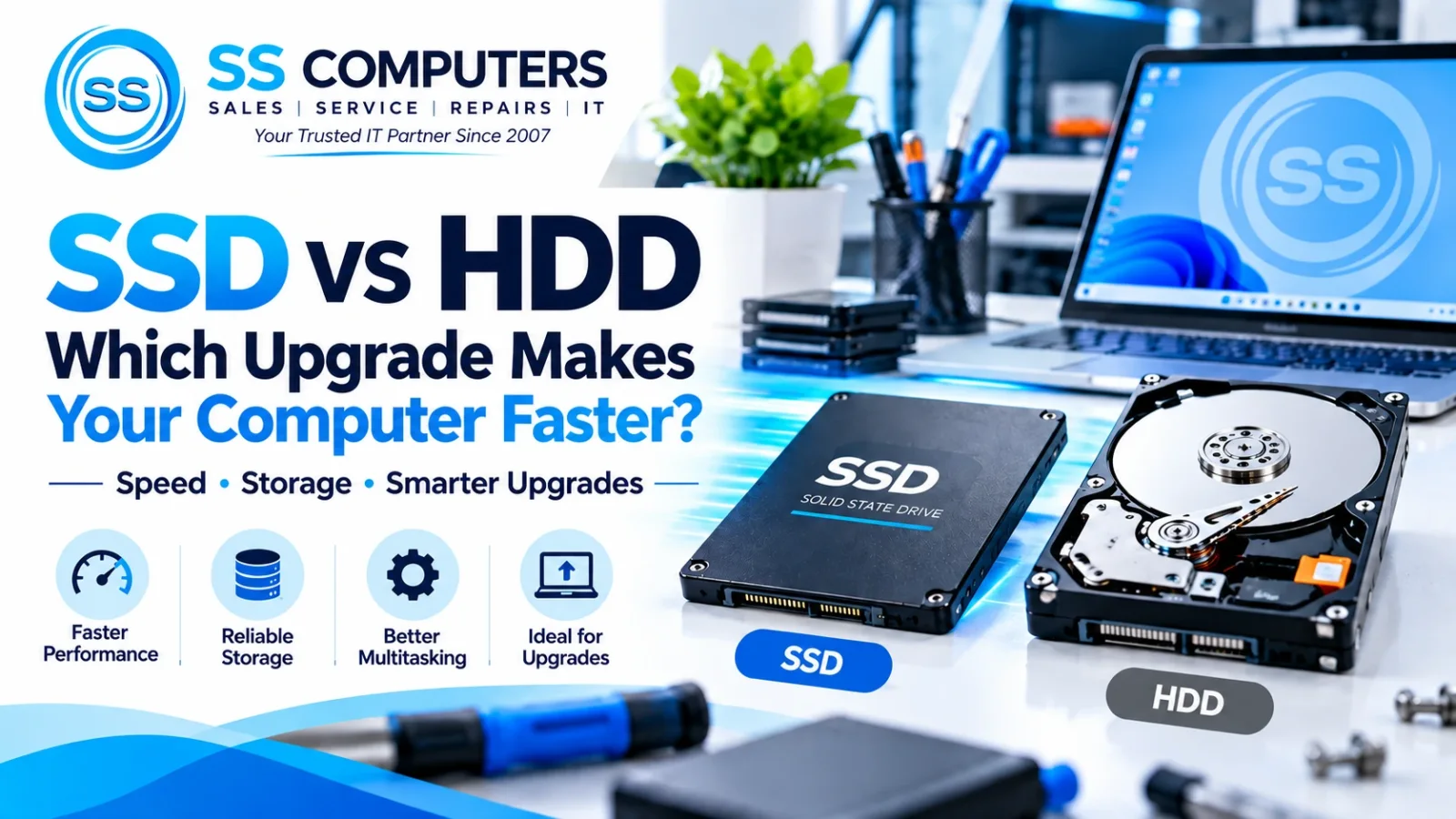
SSD vs HDD: Which Upgrade Makes Your Computer Faster?
A computer that takes too long to start, open programs or load files can make everyday work frustrating. Before replacing the entire device, it may be worth checking its storage drive. Upgrading an older hard disk drive (HDD) to a solid-state drive (SSD) can make a noticeable difference to many routine tasks, provided the rest of the computer is in working order.
At SS Computers, we help customers in Sithalapakkam and nearby Chennai areas understand suitable desktop and laptop repair and upgrade options.
What Is an HDD?
A hard disk drive (HDD) stores files on spinning magnetic platters. A mechanical read/write head moves to access the data. HDDs are still useful for large collections of photographs, videos, archives and other files where cost per gigabyte matters more than speed.
Because they have moving parts, HDDs can take longer to find scattered files and are more vulnerable to physical shock while operating.
What Is an SSD?
A solid-state drive (SSD) stores data on flash memory and has no spinning platters. SSDs generally offer much quicker access to files than mechanical HDDs. On a computer that currently uses an HDD for Windows and applications, an SSD upgrade often improves startup, application launch and general responsiveness.
There are different SSD types. Common options include 2.5-inch SATA SSDs and M.2 drives, which may use SATA or NVMe. An M.2 slot does not automatically support every M.2 drive, so compatibility should be checked before purchase.
SSD vs HDD: Quick Comparison
| Feature | SSD | HDD |
|---|---|---|
| Everyday responsiveness | Usually faster, especially as a system drive | Typically slower for starting and loading programs |
| Moving mechanical parts | No | Yes |
| Noise | Silent during normal operation | May produce mechanical noise |
| Cost per gigabyte | Generally higher | Generally lower |
| Common use | Operating system, apps and frequently used files | Bulk storage and archives |
Actual performance depends on the computer, connection type, drive condition and workload.
Which Upgrade Makes a Slow Computer Feel Faster?
If your current system drive is a healthy but slow HDD, replacing it with a compatible SSD is often one of the most noticeable upgrades for everyday use. Windows startup, opening programs and searching through local files may feel more responsive.
However, an SSD cannot solve every slow-computer problem. Too little RAM, overheating, an ageing processor, unwanted background programs, malware or a failing component may still affect performance. A diagnosis is useful before spending money on parts.
For persistent desktop issues, explore our Computer Repair Services. If you use a laptop, see our Laptop Repair and Service page.
How Much Storage Do You Need?
Capacity depends on what you store and the software you use:
- 256 GB: Can suit basic documents and light everyday use, but space can fill quickly.
- 512 GB: A practical starting point for many home, student and office users.
- 1 TB or more: Worth considering for larger applications, media collections or heavier workloads.
Keep free space available for updates and normal use. If you need a large archive, a combination of SSD for the system and HDD or external storage for less frequently accessed files may be practical.
Important Checks Before an SSD Upgrade
- Check compatibility. Confirm the drive form factor, supported interface and available space or slot.
- Back up important files. Keep a verified backup before cloning or reinstalling Windows. Cloning is not a substitute for an independent backup.
- Check the health of the existing drive. A failing HDD may need special handling to avoid further data loss.
- Consider the whole system. RAM, cooling and software condition can also affect performance.
- Confirm the installation plan. Decide whether your existing system will be cloned or a fresh installation is more appropriate.
For additional preventive care, read our guide: Why Regular Computer Maintenance Is Important for Home & Office Users.
SSD Upgrade Support in Sithalapakkam, Chennai
Not every slow computer needs replacing. SS Computers can help assess desktop and laptop storage issues, discuss compatible upgrade options and explain the next steps based on your device and requirements.
Need help deciding between SSD and HDD? Contact us with your computer or laptop model and the problem you are experiencing.
- Visit SS Computers
- Computer Repair & Upgrades
- Laptop Repair & Service
- Book a Service Ticket
- Contact SS Computers
- Call: +91 98848 33551
- WhatsApp: Chat with SS Computers
SS Computers — Sales, Service, Repairs & IT Support in Chennai since 2007.